


Are you planning on buying Bluetooth headphones? Some people say wired is better, but is that really true?
Here are some of the problems you may encounter with Bluetooth headphones, which can help you make an informed decision before buying.

Check our guide to the best headphones without Bluetooth and wi-fi.
1. My Device Cannot Find Bluetooth Headphones
The first thing you need to do when using Bluetooth headphones is pair them with the device you want to listen to. That means making sure that your device can “find” your Bluetooth headphones.
Note, we have a full guide here on how to pair your wireless Bluetooth headphones.
But suppose your device can’t find your Bluetooth headphones. How do you resolve this?
- The first thing you need to check is if the Bluetooth headphones are on. Some Bluetooth headphones have an automatic off feature if left idle and unpaired for a specific period.
- Once you’ve checked if your Bluetooth headphones are on, you should then check the compatibility of your Bluetooth headphones with the operating system.
-
- For the most part, this won’t be a problem as most of the smartphones that are still operational run at least Android 4.3 (the latest version is already at Android 10) or iOS 7 (the latest being 14.6).
- The same can be said for computers, as many of the computers now would be running operating systems that are at par with the current Bluetooth standards.
-
- The next thing to check is the distance between the device and Bluetooth headphones. Although Bluetooth devices have longer ranges, you can get the best result if the headphones and devices you’re pairing are within three feet of each other.
- One thing that many consumers fail to do is check the recommended process for pairing Bluetooth headphones.
Not all devices have the same process in pairing, which is why you ought to check what the manufacturer suggests to do in pairing your Bluetooth headphones. - If that does not work, try turning off and on both devices. You might just need a quick reboot.
- Another thing to do would be to stay away from other Bluetooth-enabled devices. Your headphones might be pairing with another device, instead of your phone or computer. If you can, disable Bluetooth on other devices you don’t need for now.
- Lastly, try moving away from the Wi-Fi router. There’s a good chance that your headphones and Wi-Fi router are using the same spectrum, which causes it not to appear in your list of available devices.
2. The Device Cannot Pair with Bluetooth Headphones
Once you manage to find your Bluetooth Headphones in the list of available devices, it’s time to pair it.
But sometimes, the pairing doesn’t happen on the first try. The pairing may seem like it’s taking forever, or you get an error message.
So, how do you solve this pairing issue?
- The first thing to do is remove other Bluetooth connections that you don’t need, especially if you have another pair of Bluetooth headphones or speakers paired to your device. Not all devices can override your existing pairing with new Bluetooth headphones.
- If that does not work, consider restarting both devices and try pairing them after.
- And as noted previously, consider other interferences that may affect the pairing of your devices.
3. Bluetooth headphones keep on disconnecting from my device
It can be quite annoying when after you connect your Bluetooth headphones, they then keep on disconnecting after a while. Sometimes it reconnects automatically, and other times you need to do it yourself.
That really can get on your nerves, especially when you’re in the middle of a video call, or just in the zone to relax.
So how do you deal with this?
- First of all, make sure that your Bluetooth headphones and device are within range. Not all devices have the same Bluetooth range, which is why you need to remain within a certain distance. If you start getting too far away from the device, your connection will start dropping. Just because it’s wireless, it doesn’t mean you can go too far!
- Next, your Bluetooth headphones must have enough power. Remember that electronic devices need power to stay reliable. That’s why the more juice your battery has, the better it can perform. But as a safety precaution, don’t charge and use your Bluetooth headphones at the same time.
- The next thing you can do is unpair and re-pair the Bluetooth headphones.
- If it still doesn’t work, try restarting both devices.
- Lastly, if you have another device or pair of Bluetooth headphones, try pairing them.
- If nothing will pair, check for firmware updates.
- If there is no firmware update available, contact the manufacturer for support. They can point you to any updates that your device may need.
3. Bluetooth Headphones have static
Even as Bluetooth technology has improved over the years, it is still prone to interference.
You may hear some static or cracking sounds on your headphones, which is never a pleasant sound.
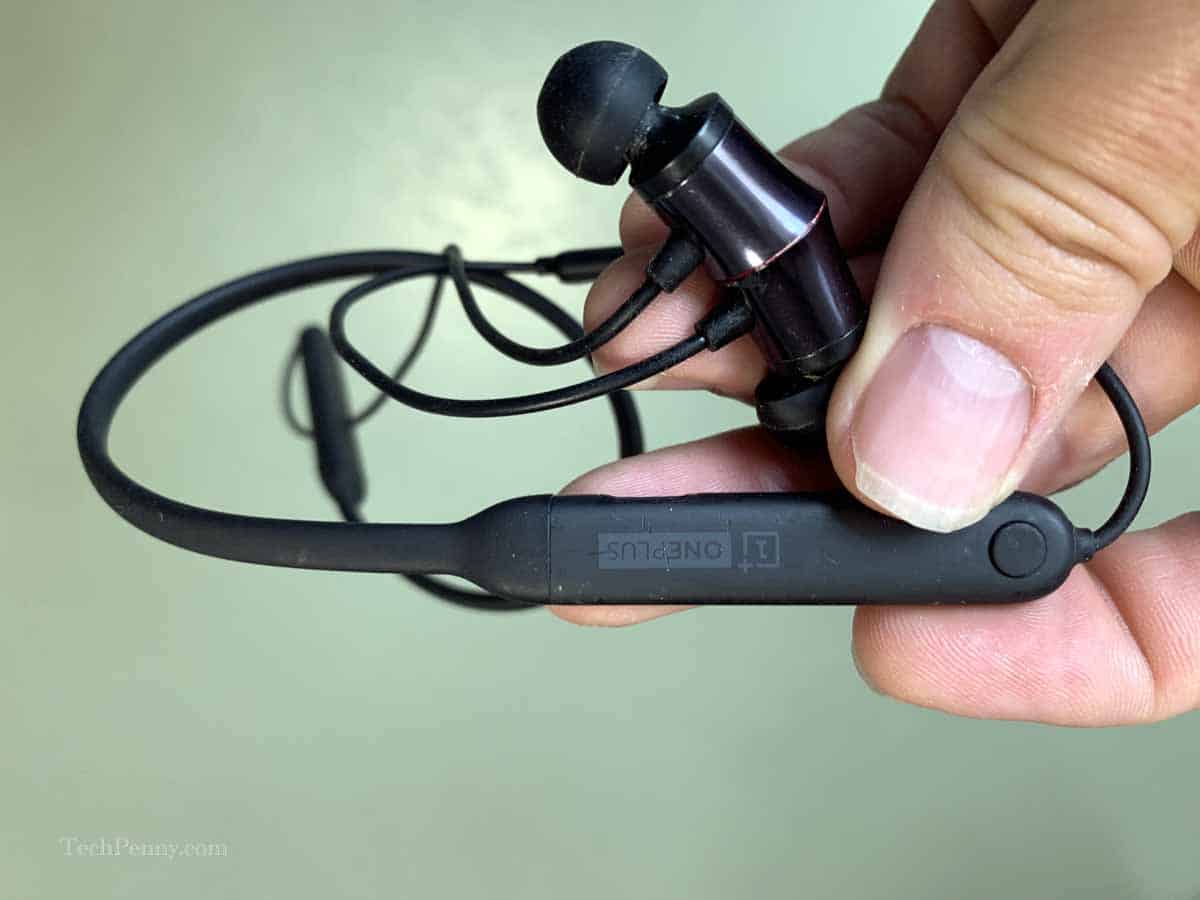
So how do you deal with the interference?
- The first thing to do is disable or turn off the Bluetooth function of any unused devices in the area. Having Bluetooth active for idle devices may be causing interference between two devices.
- The second thing to look into is resetting your Bluetooth headphones. The process varies per manufacturer, so it’s best to consult the user manual.
- Third, try turning on your media player then unpair your Bluetooth headphones for 30 seconds. Then try re-pairing them to see if the static goes away.
- Try keeping your device closer to your headphones and see if the static disappears.
- If your Bluetooth headphones have the option for a wired connection, like the Marshall Majors, try connecting via cable.
If the static is still there, it means the headphones have the problem and may need repair by an authorized service center.
4. There’s a delay in sound with Bluetooth headphones
Are you noticing some delay in the sound coming from your Bluetooth headphones? If you’re watching a film, and are trying to get fully immersed into the story, it can be annoying for the audio to be late.
This problem is called latency.
To give you an idea of how “normal” latency is, wired headphone connections have a latency between 5 to 10 ms. On the other hand, the latency of Bluetooth headphones can go from 34 to 300ms (which usually happens for low-quality, true-wireless Bluetooth headsets).
So what if you only use your Bluetooth headphones for listening to music, will it matter? The answer is yes! Latency affects how you hear the very beginning and of a song. You may hear some tracks starting a bit late in the first bar of the song, which is latency at work.
Latency is affected by the following:
- Bluetooth Codecs
- Bluetooth versions
- Interference
- Distance between devices
Latency is a common occurrence, but the intensity is something that can be remedied to unnoticeable levels.
So how do we solve latency issues?
Pick the best codec to match your smartphone or computer
Each device uses a particular codec, and it would be good to find a Bluetooth headphone that matches these codecs.
To give you an idea of the codec, you’re going to encounter the following codecs:
- aptX
- aptX HD
- aptX LL
- LDAC (Sony codec)
- LC3
- Samsung Scalable (Samsung’s codec)
Look for a Bluetooth headphone that matches these codecs to get the best results. These codecs are way better compared to SBC, which is almost 20 years old.
Match Bluetooth versions
Ensuring that your Bluetooth versions match means better latency. Using two versions only gives you the effectiveness of the older version.
Thus, if you want to lower latency, make sure that your Bluetooth versions match, and make sure you go for the higher version, especially if you use Bluetooth 5.0, which has improved connectivity.
If these fixes don’t work, let’s dive into the specific fixes per platform.
Fixing Bluetooth issues on Windows
If you’re having latency (or other Bluetooth-related issues) with Windows, the first thing you should do is reset your Bluetooth headphones.

- Resetting disconnects all other pairings you may have with your headphones. It gives your Bluetooth h